Inbox Filing: Receipts and Contracts, Placed for You
Scans, invoices, and contracts land in Downloads — and stay there forever? Let Alayo watch that folder: new files prompt for intake, AI works out where they belong, and you only do the final nod.
The scenario
Paperless life has a single entry point: everything falls into Downloads or a scan folder first — bank statements, invoices, lease agreements, shipping labels. They deserve to be filed, but every one of them needs you to drag it to the right folder by hand.
The pain
Manual filing costs just enough that nobody keeps it up: at the moment of sorting you have to decide "where does this belong," and when the answer isn't obvious you put it off. Three months later Downloads holds two hundred put-offs. Classic auto-filing rules ask the opposite of you: learn to write rules first — keyword forms, extension filters — like programming yourself.
How Alayo does it
Add Downloads to your monitored folders. From then on:
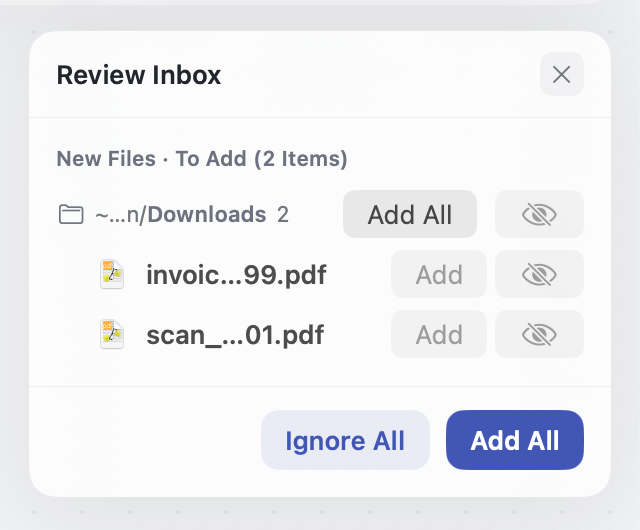
- A new file appears → the Review Inbox flags it for intake — first you decide whether it comes in;
- Once taken in, AI reads the content and understands what it is (an invoice? a contract? a screenshot?);
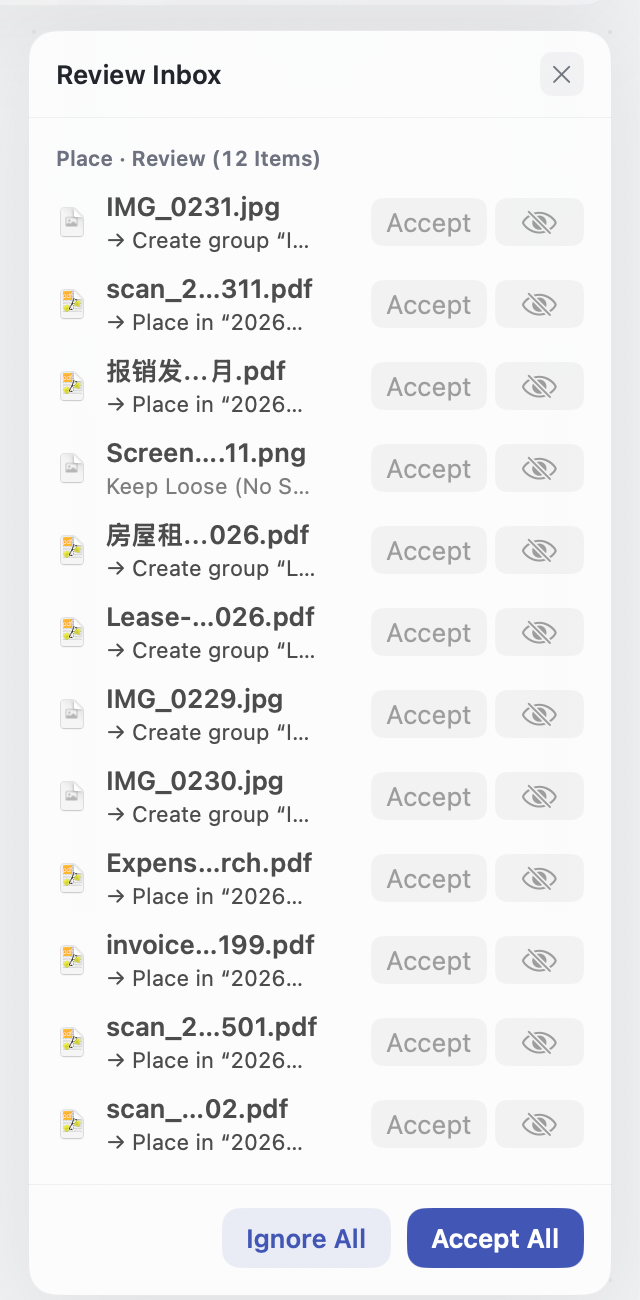
- Place suggests a home: into your existing "2026 Expenses" group — then you decide where it goes;
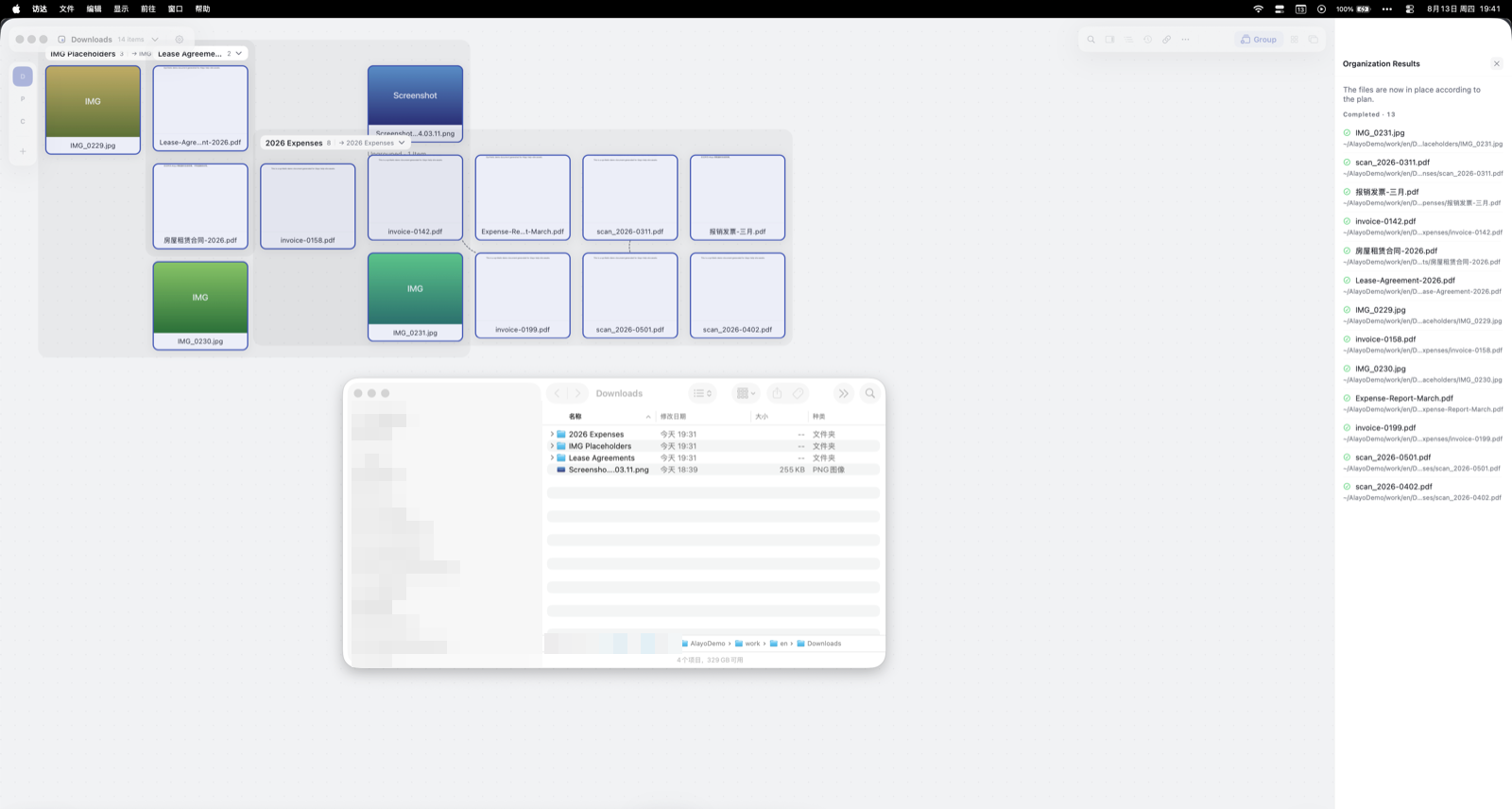
- You approve with a glance, and on apply the file actually moves to that folder.
Follow along
- Open Edit Space, and under "Monitored Folders" click Add to Monitored Folders and pick Downloads;
- Drop a PDF into Downloads, wait for the prompt, and open the Review Inbox (the View menu or the notification both get you there);
- Click Add All (or pick one by one) — the files land in your space as cards;
- Create your filing groups (say, "2026 Expenses"), select the loose cards and run Place Selected Loose Cards;
- Review each placement suggestion and accept;
- Click Review & Move…, confirm the list in Check File Changes, and apply — check Finder: the files really are where they should be (wrong spot? Undo This Move on the result view).
Watch a 30-second demo
Related reading
- New to Alayo → Getting Started
- Why every step asks for your confirmation → Core Concepts