Batch Rename: Filenames That Speak
IMG_0231.jpg, document(3).pdf, Untitled 4.png — a file whose name says nothing is half lost. Let AI read the content and propose names; you review once, then apply.
The scenario
Camera exports, scanner output, files saved in a hurry — they all look the same: a string of digits. Finding "that March expense receipt" means opening files one by one.
The pain
Renaming by hand is the dullest kind of tidying: open, glance, close, rename, next. Bulk-rename utilities only add prefixes and numbers — they can't name a file after what's in it.
How Alayo does it
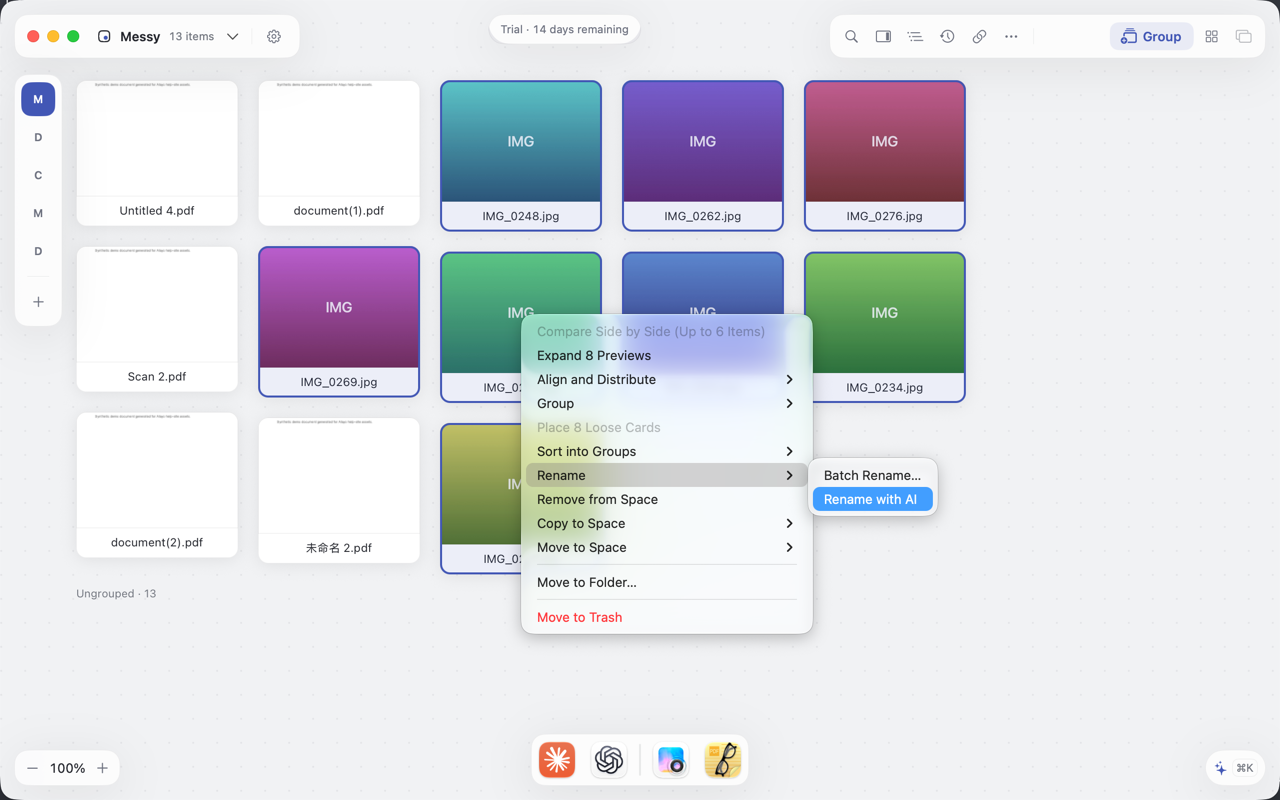
- Rename with AI: AI names files from their insights — invoices by vendor and amount, screenshots by what's on screen, documents by their title (for freshly imported files, let AI read them first — see the steps below);
- Batch Rename: dates, sequence numbers, fixed prefixes — deterministic cases go through templates, no AI required;
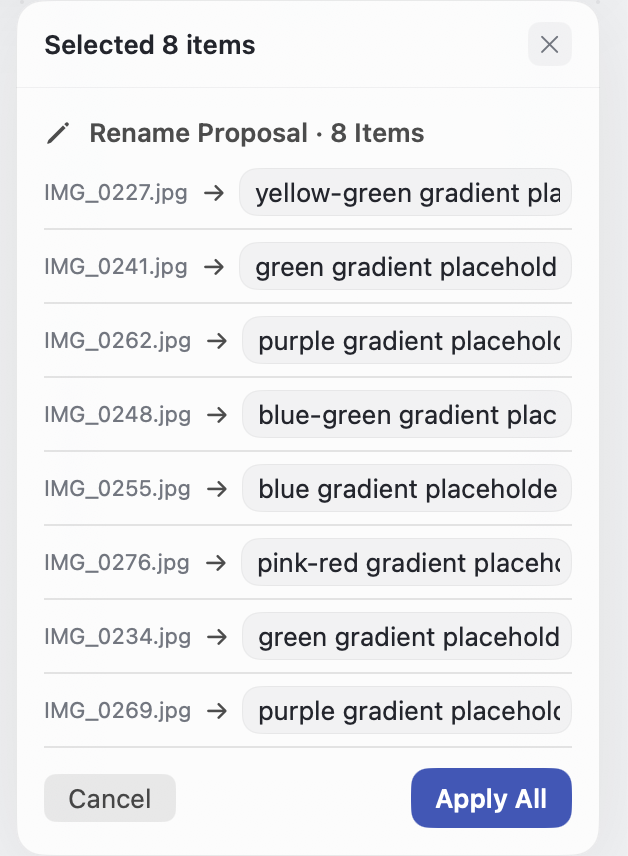
- Both roads meet at the same gate: every change is listed for review (old name → new name, line by line), and the whole batch can be cancelled;
Renaming touches real filenames, so it goes through review like moving files does: see the whole list, edit any line, and apply only when it reads right.
Follow along
- Create a new space and choose the folder of numbered files as its source — Organize with AI and insights work on the whole space, so a fresh space means only this batch is processed;
- If the batch is freshly imported and AI hasn't read it yet, press ⇧⌘O for an Organize with AI pass first (that's where insights are generated); when the plan appears, click Apply All or Cancel to close the review bar — Cancel discards only the grouping plan and keeps the insights, and renaming is unavailable while the review bar is open;
- Select the batch, right-click and choose Rename with AI (or File › Rename › Rename with AI);
- AI produces a rename list — scan it line by line and edit any proposed name in place; if the batch isn't right, cancel and rerun;
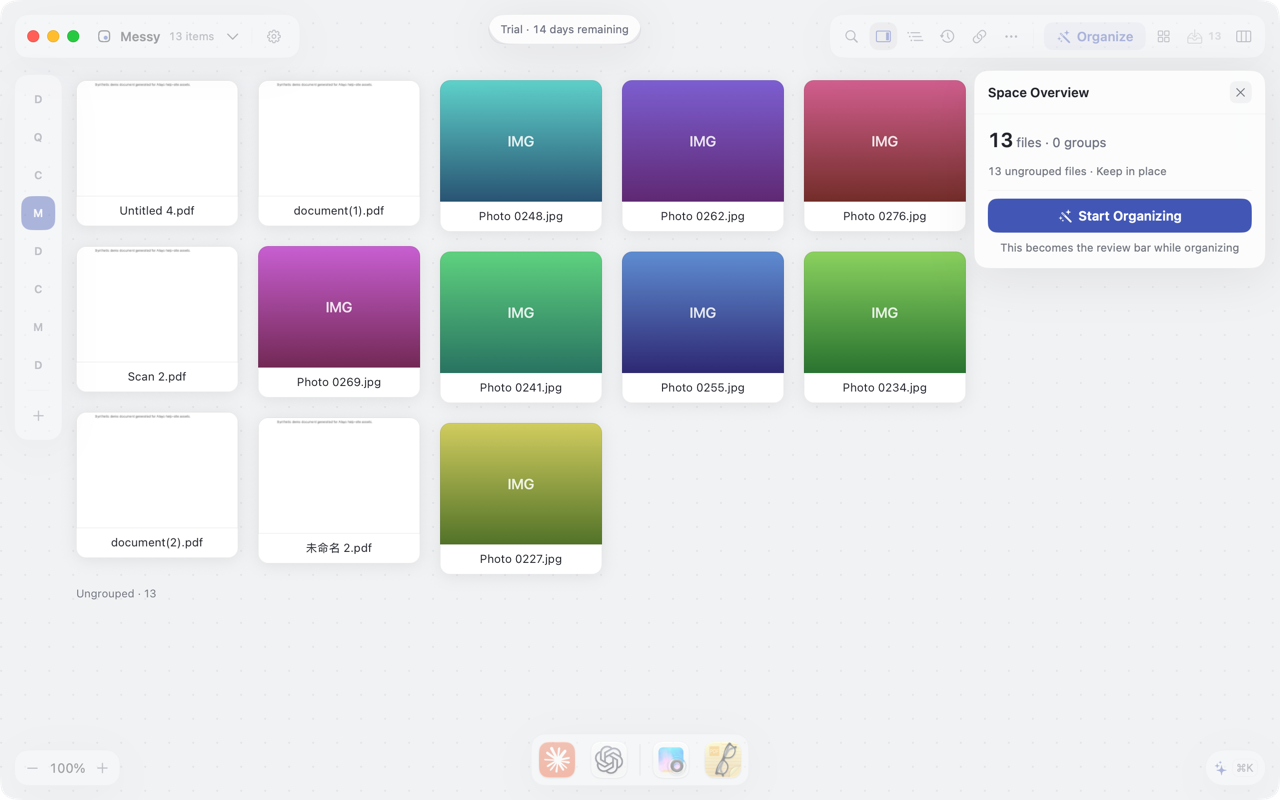
- Apply. Cards and the real files on disk take their new names together.
Watch a 30-second demo
Related reading
- New to Alayo → Getting Started
- Does AI read my files → FAQ