Research Map: Lay a Whole Topic Out
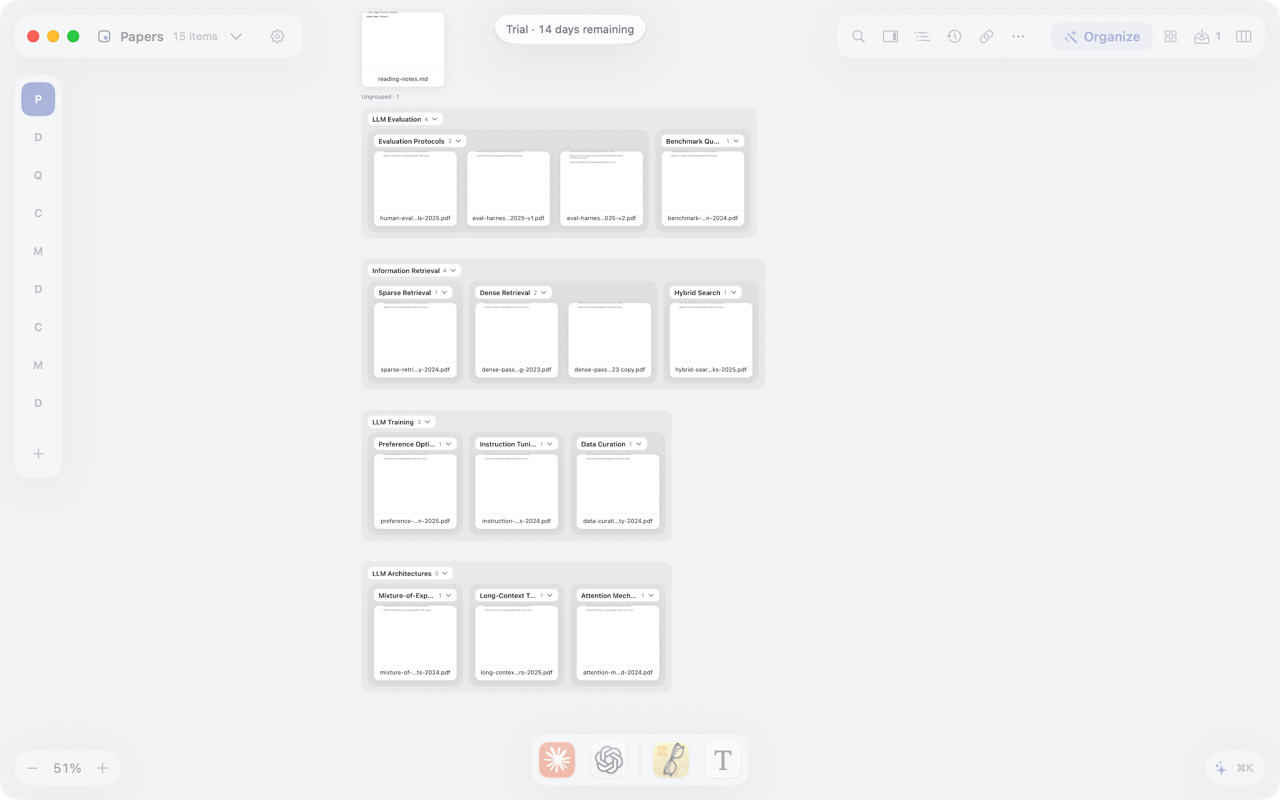
Thirty PDFs in a list are thirty filenames. Spread on a canvas and grouped by theme, they become a literature map you can actually see.
The scenario
Working a research topic, writing a survey, preparing a proposal: papers, reports, and notes pile up across Downloads, Desktop, and a "Papers" folder, and every retrieval is a filename-search gamble.
The pain
A file list can't show the shape of your research: which papers form a thread, which relate to which, where the gaps are — that structure simply doesn't exist in a list view. And the classic "see also" recommendations are black boxes: they say two papers are related without ever saying why.
How Alayo does it
- One space = one topic: choose your papers folder as a source and the canvas becomes the map; the same paper can live in two topic spaces at once — not a copy, the paper itself;
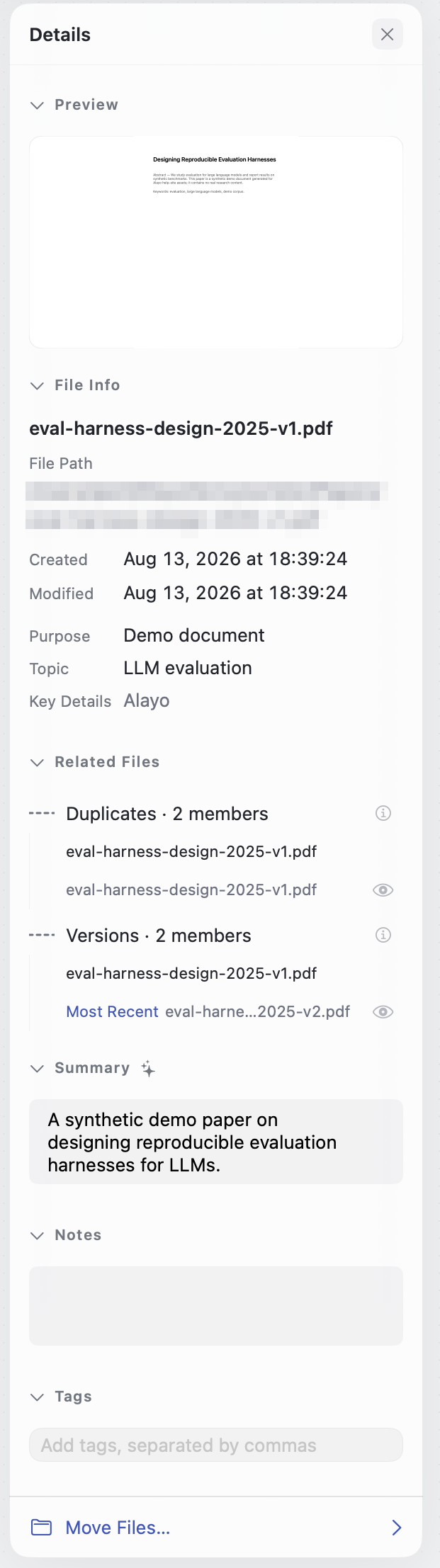
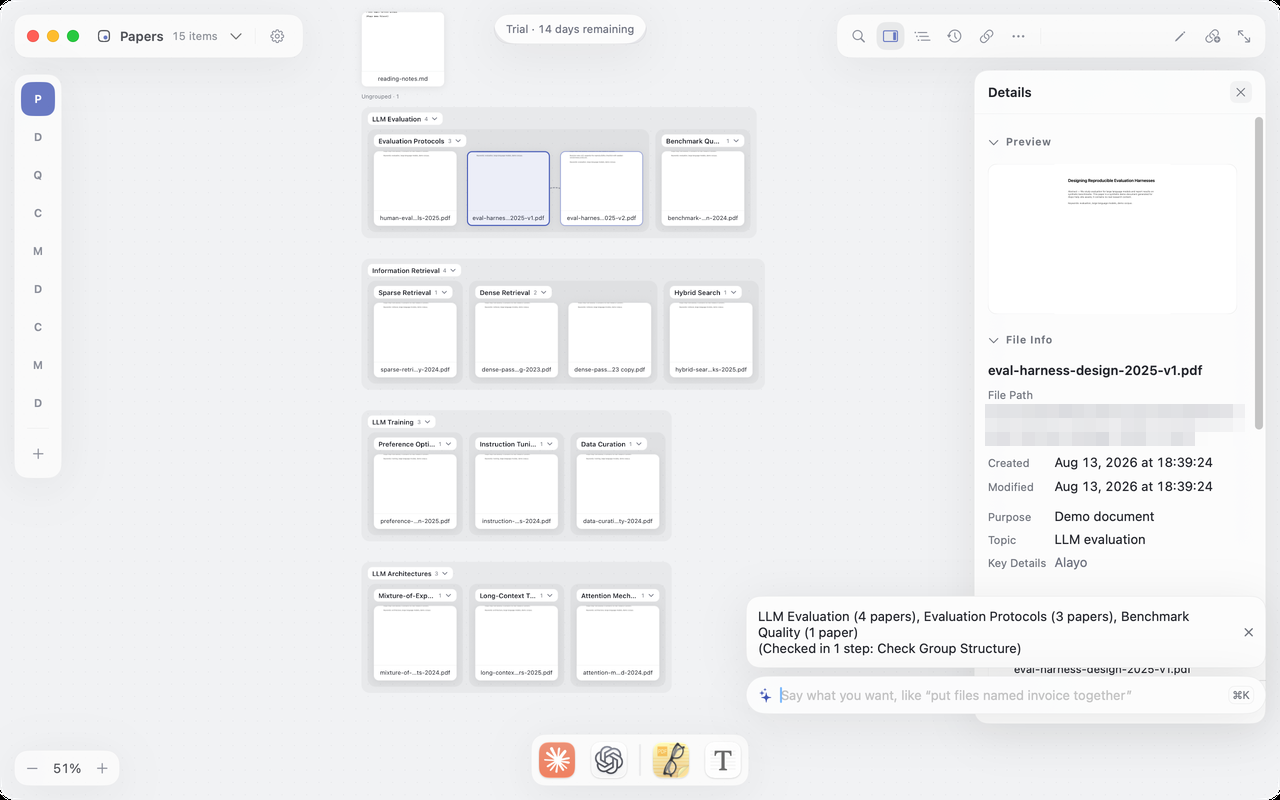
- AI analyzes each paper: summary, topics, and key details show up in the Details panel — one glance tells you what a paper is about;
- Organize with AI groups by theme: ask for an organize pass, review the proposed groups, accept — the map takes shape;
- Related Files that explain themselves: every relation says why it's there — better to list fewer than to recommend what can't be explained;
- Just ask the command bar: "the papers about evaluation" — plain words, no query syntax.
Grouping happens on the canvas layer only: your papers folder on disk stays untouched unless you explicitly apply. When the topic wraps up, the group structure can be written to disk as real folders for archiving or handover.
Follow along
- Create a space and choose your papers folder as a source;
- Press ⇧⌘O for Organize with AI — this is where AI reads every paper; review the proposed groups and accept — there's your thematic map;
- Select a few papers and read their Summary in the Details panel;
- Select one paper, expand Related Files, and read the explanation on each relation;
- Ask the command bar in plain words — try "which papers cover evaluation."
Watch a 30-second demo
Related reading
- New to Alayo → Getting Started
- What AI reads and where data goes → FAQ